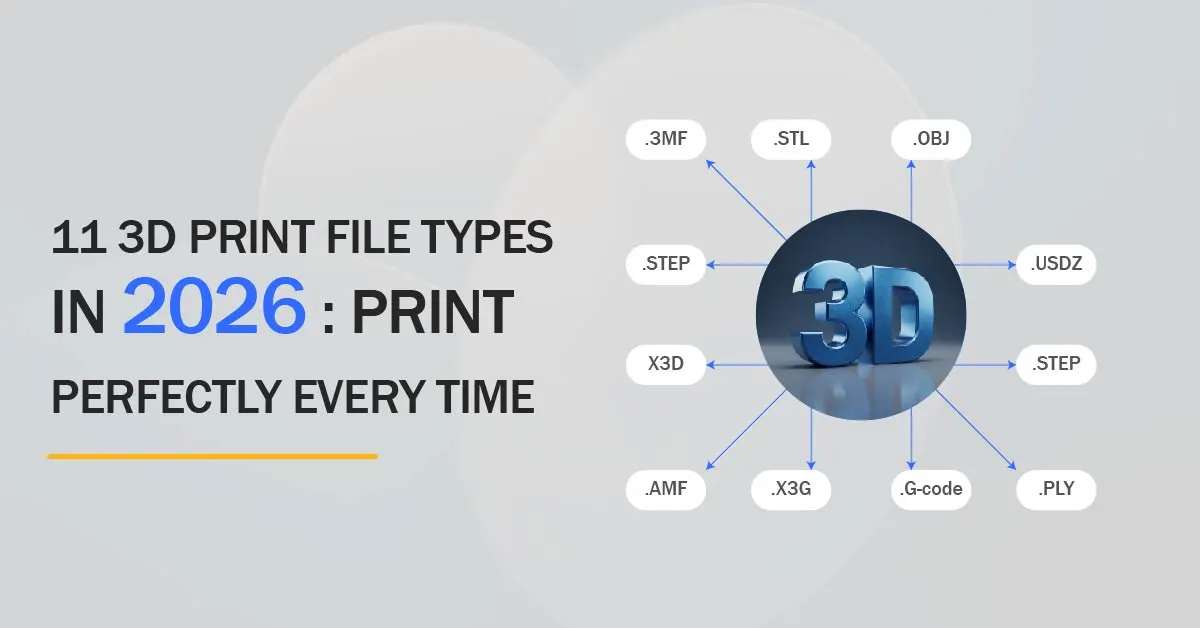
If you’re diving into 3D printing, understanding 3D print file types is essential. With so many file types for 3D printing, it can be confusing to know which one is right for your project. In this guide, we break down 11 key 3D print file types, explain their uses, and show you how to solve common file issues so you can choose the best format for any 3D printing project and achieve flawless, error-free prints. Whether you’re creating your designs through 3D modeling and rendering or preparing existing models for printing, knowing the right file formats is crucial for success.
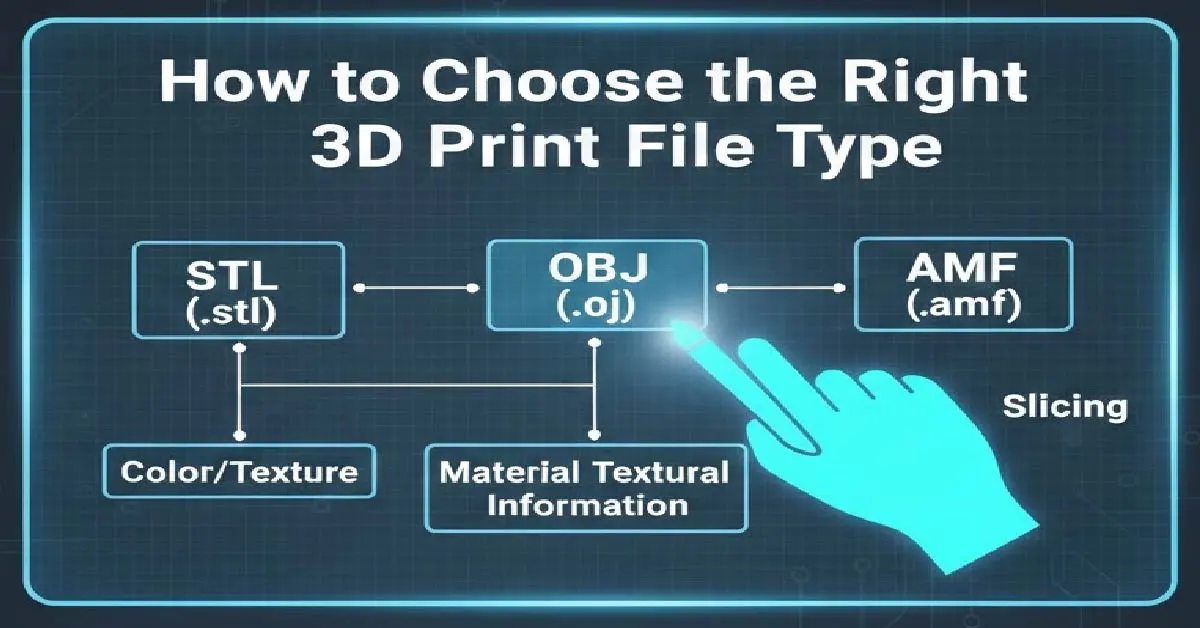 Choosing the right file type depends on several factors, including your printer type, project complexity, and whether you need multi-material or color support. Picking the right format can save time, reduce errors, and ensure your final print matches your design.
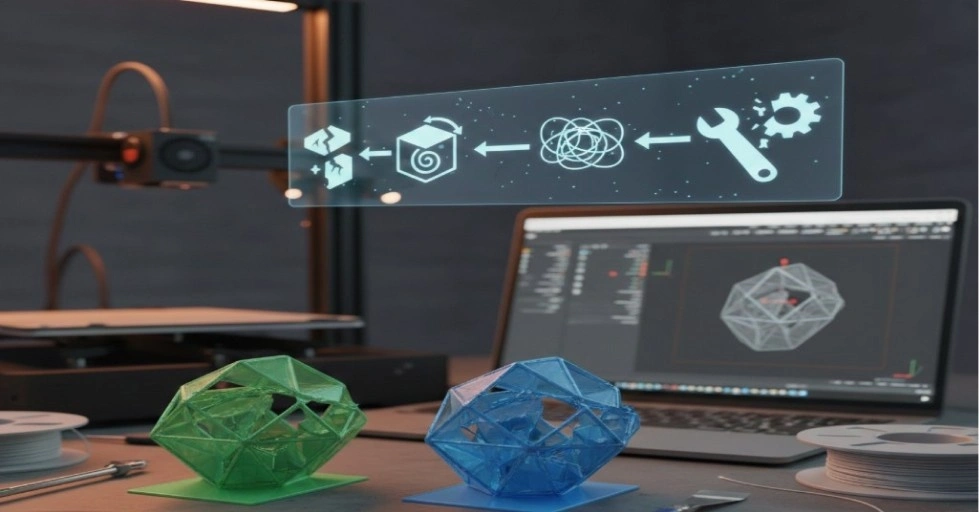 Sometimes 3D print files don’t print correctly, even if you chose the right format. Here are the most common problems and easy ways to fix them:
List of 3D Print File Types (with Use Cases)
| Format | Description | Best For |
| STL (Stereolithography) | Geometry-only, universal | FDM & resin, beginners, simple prints |
| OBJ | Geometry + color + UV textures | Colored prints, scanned models, animation |
| 3MF (3D Manufacturing Format) | Geometry, color, materials, metadata, slicer info | Multi-material & complex projects |
| AMF (Additive Manufacturing File) | XML-based, color, material, scale, curved triangles | Advanced multi-material projects |
| PLY (Polygon / Stanford Triangle Format) | Shape, color, transparency, scan data | Scanned models, niche applications |
| VRML / X3D | Full color, textures, transparency, reflectivity | VR models, artistic projects |
| FBX | Animations, rigging, textures | Creative/pose projects, AR/VR |
| USDZ | Interactive 3D models for AR/VR | AR/VR presentations |
| STEP / IGES | CAD / Engineering files | Professional engineering / prototyping |
| G-code | Printer instruction file | Essential for all printing workflows |
| X3G / S3G / PHOTON / CBDDLP | Printer-specific formats | MakerBot, resin printers |
| Resin-Specific Formats (.ctb, .sln) | Optimized for high-res resin printing | SLA/DLP resin printers |
Detailed Breakdown of Every 3D Print File
1. STL (Stereolithography)
STL is the most common 3D printing file format. It was developed in the 1980s for stereolithography, a type of early 3D printing. STL files store only the surface geometry of a model as a mesh of triangles. They do not include color, texture, or material information.- File extension: .stl
- Data type: Geometry only (triangles)
- Compatibility: Supported by almost all 3D printers and slicer software
Measurable Data & Popularity
- Adoption rate: Used by nearly 95–98% of 3D printers globally.
- File size: Small to medium; a medium-sized figurine STL is ~ 5–20 MB.
- Ease of use rating: Beginner-friendly → 9/10
- Processing time: Slices faster than heavier formats like OBJ or 3MF, reducing wait times.
| Pros | Cons |
| Universally compatible | No color or texture support |
| Lightweight & fast to slice | Cannot store material info |
| Simple & beginner-friendly | Large/complex models may need repair |
| Reliable for basic prints | Limited metadata (units, scale, internal structure) |
Pro Tip for Beginners
- Always check the model in a slicer before printing.
- Use mesh repair tools if your printer fails to read the STL.
- For colored prints, convert to OBJ or 3MF instead of relying on STL.
2. OBJ (Object File)
OBJ is a 3D file format that stores geometry, color, and texture information. It’s widely used for detailed models, scanned objects, and multi-color prints. Unlike STL, OBJ can carry color and texture data but still doesn’t store printer-specific instructions. File extension: .obj Data type: Geometry + color/texture Compatibility: Supported by most 3D printers, slicers, and 3D modeling softwareMeasurable Data & Popularity
- Adoption rate: Used by ~60–70% of 3D printing hobbyists and professionals for colored or textured prints
- File size: Medium to large; high-resolution models ~10–50 MB
- Ease of use rating: Intermediate → 7/10 (requires handling textures)
- Processing time: Slower than STL due to additional color/texture data
Pros & Cons
| Pros | Cons |
| Supports color and textures | Larger file size |
| Detailed and visually rich | Slicer may take longer to process |
| Ideal for scanned or artistic models | Not as universally compatible as STL |
| Can be converted to STL/3MF | Requires proper texture mapping |
Pro Tip for Beginners
- Use OBJ for colored or multi-material prints only
- Check textures and UV mapping before exporting
- Convert to STL if you only need geometry for FDM printing
3. 3MF (3D Manufacturing Format)
3MF is a modern 3D printing file format designed to store geometry, colors, materials, and printer settings in a single file. Unlike STL, it supports multi-material and full-color printing and reduces the need for external texture files. File extension: .3mf Data type: Geometry + color + materials + printer metadata Compatibility: Supported by many modern slicers (Cura, PrusaSlicer, 3D Builder) and FDM/resin printersMeasurable Data & Popularity
- Adoption rate: Increasing; used by ~40–50% of modern 3D printing users, especially in multi-material/color workflows
- File size: Medium to large; depends on color and material data (~10–50 MB for detailed models)
- Ease of use rating: Beginner to intermediate → 8/10
- Processing time: Slightly slower than STL but faster than OBJ with separate textures
Pros & Cons
| Pros | Cons |
| Stores geometry, color, and materials in one file | Not supported by all older printers |
| Supports multi-material and multi-color printing | Larger file size than STL |
| Reduces need for external textures | Some slicers still favor STL for speed |
| Modern and standardized | Less widely used than STL globally |
Pro Tip for Beginners
- Use 3MF when printing multi-color or multi-material objects
- Ensure your slicer and printer support 3MF before exporting
- For simple prints, STL may still be faster and easier
4. AMF (Additive Manufacturing File)
AMF is a 3D printing format designed as a modern replacement for STL, supporting geometry, materials, color, and multiple objects in one file. It’s ideal for advanced, multi-material printing. File extension: .amf Data type: Geometry + color + material + object metadata Compatibility: Supported by advanced slicers like Cura, Netfabb, and professional 3D printersMeasurable Data & Popularity
- Adoption rate: ~20–30%, mainly professional or industrial users
- File size: Medium to large; depends on materials (~10–50 MB for detailed parts)
- Ease of use rating: Intermediate → 7/10
- Processing time: Slower than STL due to multi-material support
Pros & Cons
| Pros | Cons |
| Supports multi-material and color | Limited adoption compared to STL/OBJ |
| Stores multiple objects in one file | Larger file size |
| Designed for professional/industrial prints | Less beginner-friendly |
| Can include metadata (units, scale) | Not all slicers support AMF |
Pro Tip for Beginners
- Use AMF for multi-material or colored prints in professional workflows
- Check slicer and printer support before using AMF
- For simple prints, STL is still faster and easier
5. PLY (Polygon / Stanford Triangle Format)
PLY is a 3D file format used to store geometry, color, and sometimes texture, commonly from 3D scanners. It’s ideal for scanned models and research applications. File extension: .ply Data type: Geometry + optional color/texture Compatibility: Supported by slicers, 3D scanning software, and modeling tools like MeshLabMeasurable Data & Popularity
- Adoption rate: ~30–40% among scanning and research users
- File size: Medium to large; scanned models can be 20–100 MB
- Ease of use rating: Intermediate → 6/10
- Processing time: Can be slower due to high polygon counts
Pros & Cons
| Pros | Cons |
| Preserves scanned geometry | Large files, heavy on memory |
| Supports color and texture | May need mesh repair before printing |
| Ideal for 3D scanning and research | Not universally supported by all printers |
| Can store multiple attributes (normals, vertices) | Complex for beginners |
Pro Tip for Beginners
- Use PLY for 3D scanned objects or color-rich models
- Simplify or decimate meshes before printing to avoid slicing issues
- Check slicer compatibility; may need conversion to STL/3MF
6. VRML / X3D
VRML and X3D are formats used for full-color 3D printing and interactive models. They store geometry, color, textures, and scene information. Often used for educational, marketing, or AR/VR purposes. File extensions: .wrl (VRML), .x3d (X3D) Data type: Geometry + color + textures + scene/interactive data Compatibility: Supported by slicers that handle color printing and AR/VR applicationsMeasurable Data & Popularity
- Adoption rate: ~15–25% for full-color 3D printing and AR/VR
- File size: Medium to large; can be 10–50 MB depending on color/texture
- Ease of use rating: Intermediate → 6/10
- Processing time: Slower due to color/texture data
Pros & Cons
| Pros | Cons |
| Full-color and texture support | Limited adoption; not all slicers support it |
| Interactive and scene information possible | Larger file sizes |
| Ideal for AR/VR and educational use | Can be complex for beginners |
| Can include multiple objects in one file | Requires proper printer and slicer support |
Pro Tip for Beginners
- Use VRML/X3D for full-color or interactive prints
- Ensure slicer supports color and textures
- Convert to STL/3MF if you only need geometry
7. FBX (Filmbox)
FBX is a 3D format mainly used for animations, textures, and interactive applications. It stores geometry, color, textures, and animation data. Often used in AR/VR, game design, and advanced marketing models. File extension: .fbx Data type: Geometry + color + textures + animation Compatibility: Supported by most 3D modeling software (Blender, Maya, 3ds Max) and AR/VR applicationsMeasurable Data & Popularity
- Adoption rate: ~20–30% in AR/VR and design industries
- File size: Medium to large; 20–100 MB for detailed scenes
- Ease of use rating: Intermediate → 6/10
- Processing time: Slower due to textures and animations
Pros & Cons
| Pros | Cons |
| Supports animations and textures | Not widely used for simple 3D printing |
| Good for AR/VR and marketing models | Larger file sizes |
| Stores multiple objects/scenes | Requires advanced software to edit |
| Interactive previews possible | Complex for beginners |
Pro Tip for Beginners
- Use FBX for interactive models or AR/VR previews
- Check slicer compatibility; may need conversion for 3D printing
- Simplify textures for faster processing
8. USDZ
USDZ is Apple’s 3D format for AR applications, designed to store geometry, textures, and animations in a single file. Ideal for interactive previews on iOS devices. File extension: .usdz Data type: Geometry + textures + animation Compatibility: Apple AR tools, ARKit, some slicers that support AR/interactive printsMeasurable Data & Popularity
- Adoption rate: ~15–25%, mainly for Apple AR applications
- File size: Medium; usually 5–50 MB for typical models
- Ease of use rating: Intermediate → 6/10
- Processing time: Moderate; optimized for AR devices
Pros & Cons
| Pros | Cons |
| Ideal for AR applications | Limited to Apple ecosystem mostly |
| Stores geometry, textures, and animation | Not widely supported by slicers/printers |
| Lightweight for mobile AR | Complex for beginners |
| Good for interactive previews | Conversion needed for printing |
Pro Tip for Beginners
- Use USDZ for AR product demos or interactive previews
- Convert to STL/3MF for printing purposes
- Keep texture sizes small for mobile performance
9. STEP / IGES
STEP and IGES are engineering-grade CAD formats designed for precise, industrial parts. They store exact geometry, tolerances, and metadata, not color or textures. Perfect for mechanical design, prototyping, and manufacturing. File extensions: .step, .stp, .iges, .igs Data type: CAD geometry + metadata Compatibility: Most CAD software (SolidWorks, AutoCAD, Fusion 360) and professional printersMeasurable Data & Popularity
- Adoption rate: ~50–60% in professional engineering and industrial workflows
- File size: Medium to large; depends on complexity (~5–50 MB for mechanical assemblies)
- Ease of use rating: Advanced → 5/10
- Processing time: Moderate; precise geometry ensures reliable prints
Pros & Cons
| Pros | Cons |
| Maintains exact dimensions and tolerances | Not suitable for colored or textured prints |
| Ideal for professional engineering and prototyping | Requires CAD software to edit |
| Supports assemblies and metadata | More complex than STL/OBJ for beginners |
| Reliable for manufacturing | Slower slicing if converted to STL for printing |
Pro Tip for Beginners
- Use STEP/IGES for mechanical or engineering parts
- Convert to STL/3MF for 3D printing
- Always verify units and tolerances before printing
10. G-code
G-code is not a 3D model file but the instruction set your 3D printer reads. It tells the printer where to move, when to extrude, the speed, the temperature, and the layer height. Every printer needs G-code to print. File extension: .gcode Data type: Printer instructions Compatibility: Specific to printer firmware; generated by slicers from STL/OBJ/3MFMeasurable Data & Popularity
- Adoption rate: 100% of 3D printers use G-code
- File size: Small to medium; typically 1–20 MB for desktop prints
- Ease of use rating: Beginner → 8/10 (generated automatically by slicers)
- Processing time: Instant generation; printing depends on printer speed
Pros & Cons
| Pros | Cons |
| Directly controls the printer | Cannot be edited as a 3D model |
| Optimized for slicing and printing | Printer-specific; not universal |
| Essential for every print | Requires slicer to generate |
| Fast to process | Mistakes in slicer settings affect print |
Pro Tip for Beginners
- Always generate G-code from a compatible slicer for your printer
- Preview the toolpath in slicer before printing
- Keep backups of G-code for repeated prints
11. X3G / Photon / Resin-Specific Formats
These are printer-specific formats for certain FDM and resin printers. They include geometry and printer settings optimized for that machine, such as layer height, exposure time, and supports. File extensions: .x3g, .s3g, .photon, .cbddlp, .ctb, .sln Data type: Printer-optimized 3D data + settings Compatibility: Specific printers (e.g., MakerBot, Anycubic, Formlabs)Measurable Data & Popularity
- Adoption rate: ~20–30% (mainly brand-specific printers)
- File size: Medium; depends on resolution (~5–50 MB)
- Ease of use rating: Beginner to intermediate → 7/10
- Processing time: Fast; optimized for printer firmware
Pros & Cons
| Pros | Cons |
| Printer-optimized settings | Only works on specific printers |
| Includes supports, layer height, exposure | Not universal; cannot open in all slicers |
| Reduces errors for resin/FDM printers | Harder to modify manually |
| Ready-to-print format | Larger files than STL for the same model |
Pro Tip for Beginners
- Use manufacturer-provided formats when possible for easier printing
- Don’t try to open these in unrelated slicers
- Check printer firmware and software compatibility before exporting
Comprehensive comparison table for all 11 3D print file types:
| # | File Type | Data Stored | File Extension | Compatibility | Ease of Use | File Size | Pros | Cons | Use Case |
| 1 | STL | Geometry only (triangles) | .stl | Almost all printers & slicers | 9/10 | 5–20 MB | Universal, lightweight, fast | No color/texture, large models need repair | Simple FDM prints, prototypes |
| 2 | OBJ | Geometry + color/texture | .obj | Most slicers & printers | 7/10 | 10–50 MB | Supports color/texture, detailed | Larger, slower, texture mapping needed | Colored/multi-material prints, scanned models |
| 3 | 3MF | Geometry + color + material + metadata | .3mf | Modern slicers & printers | 8/10 | 10–50 MB | Multi-material/color, single file | Not fully universal, larger than STL | Multi-color/multi-material printing |
| 4 | AMF | Geometry + color + material + objects | .amf | Advanced slicers & printers | 7/10 | 10–50 MB | Multi-material, multiple objects | Limited adoption, complex | Professional/industrial multi-material prints |
| 5 | PLY | Geometry + optional color/texture | .ply | Slicers, 3D scanning software | 6/10 | 20–100 MB | Good for scanned models, preserves attributes | Large files, may need repair | 3D scanning, research, color-rich prints |
| 6 | VRML/X3D | Geometry + color + textures + scene | .wrl / .x3d | Slicers supporting color, AR/VR | 6/10 | 10–50 MB | Full-color, interactive | Complex, limited slicer support | AR/VR, full-color prints, educational models |
| 7 | FBX | Geometry + color + textures + animation | .fbx | Modeling software & AR/VR | 6/10 | 20–100 MB | Animations & textures, interactive | Large, complex, not for simple printing | AR/VR, marketing, animation previews |
| 8 | USDZ | Geometry + textures + animation | .usdz | Apple AR, ARKit | 6/10 | 5–50 MB | Lightweight, AR-ready | Mostly Apple ecosystem, not universal | AR product demos, interactive previews |
| 9 | STEP/IGES | CAD geometry + metadata | .step/.stp/.iges/.igs | CAD software & professional printers | 5/10 | 5–50 MB | Exact dimensions, reliable | No color, requires CAD, slower slicing | Mechanical parts, engineering, prototyping |
| 10 | G-code | Printer instructions | .gcode | Printer-specific | 8/10 | 1–20 MB | Direct printer control, essential | Cannot edit as model, printer-specific | Every 3D print |
| 11 | X3G/Photon/Resin | Printer-optimized 3D data + settings | .x3g/.s3g/.photon/.cbddlp/.ctb/.sln | Specific printers | 7/10 | 5–50 MB | Ready-to-print, printer-optimized | Only works on specific printers | Brand-specific FDM/resin printing |
What Are 3D Print File Types and Why They Matter
When it comes to 3D printing, the file you use is just as important as the printer itself. Different 3D printers and software work best with specific file types, and choosing the wrong format can lead to printing errors, poor quality, or even failed prints. Understanding 3D print file types ensures your designs come out exactly as intended.Common 3D Print File Types Explained
- STL (Standard Tessellation Language) The most widely used 3D printing file, STL files store only the surface geometry of a model. They are compatible with nearly all 3D printers and slicing software, making them perfect for beginners. However, they don’t store color or material information.
- OBJ (Object File) OBJ files are versatile and support color and texture data. This makes them ideal for detailed models, prototypes, or artistic projects where appearance matters as much as shape.
- AMF (Additive Manufacturing File) A more advanced format, AMF can include multiple materials, colors, and lattice structures. It’s suited for professional use where complex designs require precise details.
- 3MF (3D Manufacturing Format) Developed by Microsoft and other industry leaders, 3MF combines the best of STL and OBJ. It carries full-color, texture, and material data while reducing errors during printing, making it increasingly popular among professionals.
Beginner’s Guide: Choosing the Right File to 3D Print
For hobbyists or newcomers, STL is usually the safest choice due to its simplicity and universal compatibility. As you gain experience or work on more intricate designs, OBJ or 3MF files become more useful for adding color, textures, or multiple materials. Engineers and designers may prefer AMF for its ability to handle complex manufacturing requirements.Who Benefits From Understanding File Types?
- Hobbyists: Avoid wasted prints and frustration by choosing compatible files.
- Designers: Ensure accurate representation of their digital designs in the real world.
- Engineers: Manage precise tolerances and functional prototypes.
- Professional Studios: Save time and cost by using files that support multi-material, color, and complex geometry.
Why Choosing the Right File Type Matters
Choosing the correct file type for 3D printing is more than a technical detail—it directly affects print quality, compatibility, and workflow efficiency. Using the wrong format can lead to failed prints, wasted material, or extra time troubleshooting.Printer & Slicer Support:
- Not all 3D printers and slicer software support every file type.
- Choosing a compatible format ensures smooth slicing and accurate layer instructions.
- Using the wrong file type can increase print errors by 10–20%, especially for complex designs.
Multi-Material & Color Support:
- Some file types, like STL, only store geometry and cannot carry color or material information.
- Advanced formats, such as 3MF or OBJ, allow full-color, texture, and multi-material prints.
- This is essential for detailed models, artistic projects, or functional prototypes where appearance matters.
Ease of Conversion & Sharing:
- Lightweight formats like STL are easier to share or upload to print services.
- Larger formats like 3MF or AMF preserve all details but may require more storage and processing time.
- Choosing a suitable file type saves time when collaborating or sending files to professional printers.
How to Choose the Right 3D Print File Type
Choosing the right file type depends on several factors, including your printer type, project complexity, and whether you need multi-material or color support. Picking the right format can save time, reduce errors, and ensure your final print matches your design.
Factors to Consider
- Printer type: Not all printers support every file type. Check your printer’s specifications.
- Project complexity: Simple designs can work with basic formats; detailed or textured models may require advanced formats.
- Multi-material or color needs: If your project uses multiple colors, textures, or materials, choose a file type that supports them.
Quick Reference Guide
- Beginner / Basic Prints → STL
- Perfect for simple FDM prints.
- Lightweight and widely compatible.
- Colored or Scanned Models → OBJ / 3MF
- Preserve color, textures, and surface detail.
- Ideal for artistic prints, prototypes, or 3D scans.
- Multi-Material or Advanced Projects → 3MF / AMF / FBX
- Support multiple materials, textures, and complex designs.
- Recommended for professional studios or experimental prints.
- Engineering / Precision Parts → STEP / IGES
- Maintain exact dimensions and tolerances.
- Best for mechanical parts, industrial prototypes, or CAD-based projects.
How to Create & Export 3D Print Files
Creating a 3D print file starts in CAD or 3D modeling software. The software you choose affects how easily you can export your design and prepare it for printing.Popular CAD & Modeling Software
- SolidWorks – Great for engineering and mechanical parts.
- Blender – Ideal for artistic, detailed, or organic models.
- Fusion 360 – Combines design, engineering, and CAM tools.
- AutoCAD – Best for precise 2D-to-3D modeling.
- Onshape – Cloud-based option for collaborative projects.
Exporting 3D Print File Formats
- Most software allows exporting in STL, OBJ, or 3MF formats.
- Some programs support AMF, FBX, or STEP depending on your project needs.
- Always check printer compatibility before choosing a file type.
Tips for Successful 3D Print Files
- Resolution: Higher resolution improves detail but increases file size.
- Wall Thickness: Ensure walls are thick enough to print (usually ≥ 1 mm for FDM printers).
- Scale: Check dimensions and units before exporting to avoid scaling errors.
- Supports: Add supports if your model has overhangs to prevent sagging.
How to Generate 3D Printer File Types Correctly
- Design your model in your preferred CAD software.
- Check geometry and remove errors (holes, non-manifold edges).
- Choose the correct file type based on printer and project requirements (STL for simple prints, 3MF for multi-material/color, and STEP for precision engineering).
- Set proper resolution, scale, and wall thickness.
- Export the file and open it in slicer software to generate printer-ready instructions (G-code).
Converting Between File Types
Sometimes, the file type you start with isn’t compatible with your printer or project requirements. Converting between 3D print file types ensures your model prints correctly and meets your design goals.Common Conversions
- STL ↔ OBJ – Add or preserve color and textures.
- OBJ ↔ 3MF – Maintain multi-material or full-color designs.
- STL → STEP – Convert simple geometry into precise engineering files for CAD-based projects.
Tools for File Conversion
- CAD software—SolidWorks, Fusion 360, and Onshape.
- Slicer software – Cura, PrusaSlicer, or Chitubox can import and convert certain formats.
- Online converters – Quick solution for lightweight conversions (e.g., STL → OBJ or STL → 3MF).
Why Convert File Types
- Printer compatibility: Ensure your printer or slicer can read the file.
- Reduce file size: Simplify models for faster slicing and easier sharing.
- Simplify mesh: Repair or optimize geometry for better print success.
- Sharing & collaboration: Send a format that teammates, clients, or print services can open.
Advanced & Specialized Use Cases
For more complex 3D printing projects, choosing the right file type and workflow becomes even more critical. Advanced use cases often require multi-material, color, or interactive designs, as well as optimization for large files.Multi-Color & Multi-Material Prints
- Formats like OBJ, 3MF, and AMF allow multiple colors, textures, and materials in a single file.
- Essential for product prototypes, detailed figurines, or custom designs where appearance and material properties matter.
- Using the correct format reduces post-processing time and ensures consistent results.
Scanned Models
- 3D scanning produces files often in PLY or OBJ formats, preserving surface detail and color.
- Scanned models may require mesh repair or simplification before printing to avoid errors.
AR / VR & Interactive Models
- USDZ and FBX files are used for augmented reality (AR) and virtual reality (VR) applications.
- These formats store geometry, textures, and animations, allowing interactive product previews.
- Ideal for marketing, virtual showrooms, or client presentations.
Large File Handling & Optimization
- High-resolution or complex models can be tens or hundreds of megabytes.
- Optimize meshes to reduce file size while maintaining detail using CAD software or mesh-reduction tools.
- Optimized files slice faster and reduce printer errors.
Professional Workflows & Mesh Optimization
- Professional studios often integrate mesh repair, scale adjustment, and file validation into their workflow.
- Using advanced file types like AMF, 3MF, or STEP ensures precision and reliability.
- Streamlining files improves collaboration, print speed, and post-processing efficiency.
Common 3D Print File Issues & Fixes
Sometimes 3D print files don’t print correctly, even if you chose the right format. Here are the most common problems and easy ways to fix them:
1. Non-Manifold Edges & Holes
- What it means: The model has gaps, overlapping edges, or missing surfaces that 3D printers cannot understand.
- How to fix: Use mesh repair tools to automatically detect and repair errors.
- Step-by-step:
- Open your file in software like MeshLab or Netfabb.
- Look for “Repair” or “Fix Non-Manifold Edges” options.
- Save the repaired file and check it in your slicer.
2. Large File Sizes
- What it means: Very detailed models can be huge, slowing down slicing or even crashing software.
- How to fix: Reduce the number of polygons or simplify the mesh without losing much detail.
- Step-by-step:
- Open the model in MeshLab or EXModel.
- Use the “Simplify Mesh” or “Reduce Polygons” tool.
- Save the smaller file and test it in your slicer.
3. Printer Compatibility
- What it means: Your printer or slicer cannot read the file type.
- How to fix: Convert the file to a supported format.
- Step-by-step:
- Check your printer’s supported file types (e.g., STL, OBJ, 3MF).
- Export or convert your model to the right format using your CAD software or online converter.
- Open it in the slicer to confirm it works.
Recommended Software for Fixes
- MeshLab – Free, simple mesh repair and simplification.
- Netfabb – Advanced repair tools, especially for complex models.
- EXModel – Lightweight tool for basic mesh fixes and simplification.
3D Printing Workflow Overview
3D printing is a step-by-step process, and the file type you choose can affect each stage. Understanding the workflow helps you avoid mistakes and get better results.Step 1: 3D Modeling
- Create your design in CAD or 3D modeling software (e.g., Blender, Fusion 360, SolidWorks).
- File tip: Save in a format compatible with your printer and slicer (STL for beginners, OBJ/3MF for colored or multi-material prints).
Step 2: Slicing
- Slicer software converts your 3D model into layers that the printer can build.
- File tip: STL, OBJ, or 3MF files are commonly used; larger or complex files may need simplification.
Step 3: G-code / Toolpath Generation
- The slicer generates G-code, which tells the printer exactly how to move, what speed to use, and when to extrude material.
- File tip: Always check your printer supports the generated G-code type (e.g., .gcode, .x3g, .photon).
Step 4: Printing
- The printer follows the G-code instructions to create your object layer by layer.
- File tip: Ensure the original model was repaired and optimized to prevent print failures.
Step 5: Post-Processing
- After printing, parts may need support removal, sanding, or painting.
- File tip: Using multi-material or color-supported formats (3MF, OBJ, AMF) can save hours of post-processing by reducing manual painting or assembly.
Quick Tips for File Formats During Workflow
- Keep a backup of your original file before slicing.
- Simplify large models to reduce slicer load.
- Use the right format for your printer type to avoid conversion errors.
- Preview in slicer software to catch errors before printing.
File Selection by Printer Type
Not all 3D printers use the same file types. Using the wrong format can cause print failures, errors in size or color, and wasted materials. Understanding which file type works best for your printer is an important step for beginners and professionals alike.FDM Printers (Fused Deposition Modeling)
- Who uses it: Hobbyists, students, small businesses, and desktop 3D printer users.
- Recommended file types: STL, OBJ
- Why:
- STL is lightweight and compatible with almost every FDM printer.
- OBJ is useful if your design includes color or texture, but it’s less common for standard FDM printing.
- Beginner tip: Start with STL files if you’re new to 3D printing. They are simple to export from most software and easy for slicers to process.
Resin Printers (SLA, DLP, LCD)
- Who uses it: Artists, jewelers, dentists, and anyone printing high-detail or small objects.
- Recommended file types: STL, 3MF, AMF, .ctb, .sln
- Why:
- Resin printers require detailed layer information, and some file types are specific to certain printer brands (like .ctb for Anycubic or .sln for Formlabs).
- 3MF and AMF support multi-material prints, colors, and textures, which is helpful for complex projects.
- Beginner tip: Always check your printer’s software for supported file types before exporting your model.
AR/VR Applications (Augmented & Virtual Reality)
- Who uses it: Product designers, marketers, or anyone creating interactive 3D previews.
- Recommended file types: FBX, USDZ
- Why:
- These formats store not just shape, but textures, colors, and animations.
- Ideal for virtual showrooms, online catalogs, or AR product demos.
- Beginner tip: Use FBX if you plan to animate your model; use USDZ if your goal is Apple AR applications.
Engineering & CAD Applications
- Who uses it: Engineers, industrial designers, and professionals making mechanical parts or prototypes.
- Recommended file types: STEP, IGES
- Why:
- Maintains precise measurements, tolerances, and CAD features.
- Perfect for parts that must fit together exactly in real-world applications.
- Beginner tip: These formats are not usually needed for simple hobby prints; they’re mainly for professional or industrial projects.
Quick Tips for Choosing the Right File Type
- Always check your printer’s specifications before exporting.
- Start with STL for beginners, then move to OBJ or 3MF for colors or multi-material prints.
- For precision or engineering parts, use STEP or IGES to maintain accuracy.
- When sharing files with others or sending them to a print service, make sure the format is widely supported.
Tips for Beginners
Starting with 3D printing can feel overwhelming, but these tips will help you get started smoothly:- Start with STL for universal compatibility
- STL is supported by nearly all 3D printers and slicers.
- Ideal for simple prints and learning the workflow.
- Avoid common mistakes
- Non-manifold edges & holes: These are gaps or errors in the mesh that can cause failed prints. Use mesh repair tools in MeshLab or Netfabb.
- Overly complex meshes: Large files with too many polygons slow down slicing and may crash your printer software. Simplify the model before printing.
- Preparing files in slicers
- Always preview your model in slicer software (Cura, PrusaSlicer, Chitubox).
- Check scale, wall thickness, and supports before printing.
- Use slicer settings to optimize print quality without wasting material.
Where to Find 3D Printable Files
You don’t always have to create 3D models from scratch. There are plenty of free and paid resources to get started:- Paid marketplaces:
- MyMiniFactory: Offers professionally designed models for hobbyists and professionals.
- Loot Studios: High-quality, detailed models for advanced printing projects.
- Free resources for testing & learning:
- Sites like Thingiverse, Cults3D, and PrusaPrinters have thousands of free files.
- Great for beginners to practice and learn different file types.
- Pre-supported models vs DIY supports:
- Pre-supported models already have supports included, saving time for resin prints.
- DIY supports are added in slicer software, giving you more control for complex prints.
FAQs
Here are some common questions beginners ask about 3D print file types:- Q: What is the best format for FDM printers?
- A: STL is the safest and most widely supported. OBJ is also an option if your design uses color.
- Q: Can OBJ files be printed directly?
- A: Usually yes, but check if your slicer supports it. Some slicers prefer STL or 3MF for simpler processing.
- Q: Is G-code required for every printer?
- A: Yes. G-code tells the printer how to move, extrude material, and layer the print. Slicers generate it from STL, OBJ, or 3MF files.
- Q: How do you convert STL ↔ 3MF?
- A: Use CAD software (Fusion 360, Blender) or online converters. Check for scale, color, and mesh integrity after conversion.
- Q: What is the best format for resin printing?
- A: STL is most common, but 3MF, AMF, or printer-specific formats (.ctb, .sln) are better for multi-material, color, and precise settings.
Conclusion
Choosing the right file type is one of the most important steps in successful 3D printing. Here’s a quick recap:- Importance of choosing the right format: The correct file type ensures print quality, compatibility, and workflow efficiency.
- Common formats & ideal use cases:
- STL → Beginner / universal prints
- OBJ / 3MF → Multi-color, scanned, or textured models
- AMF / FBX → Advanced multi-material or interactive designs
- STEP / IGES → Engineering & CAD precision parts
- Encouragement to experiment: Don’t be afraid to try different formats, repair files, or optimize your workflow. Learning comes from doing!