

Today’s furniture shoppers expect more than static product photos. They want to zoom in, rotate products, explore materials, and visualize furniture from every angle before making a purchase. That’s why more e-commerce brands are using 3D furniture modeling services to create immersive shopping experiences on Shopify stores.
The good news is that you no longer need coding skills or a development team to add interactive 3D furniture models to your Shopify website. With modern Shopify-compatible tools and optimized 3D assets, furniture brands can now upload and display realistic 3D product models in just a few simple steps.
In this guide, you’ll learn how to add 3D furniture models to Shopify stores without coding, which file formats Shopify supports, and how to create a smoother shopping experience that can improve customer engagement, boost conversions, and reduce product returns.
Before You Start: What You Actually Need
Before diving into the steps, let’s clear up a common source of confusion. Shopify does not support STL, OBJ, or FBX files directly in its storefront. Those are 3D modeling formats used in design software – not web-ready formats.
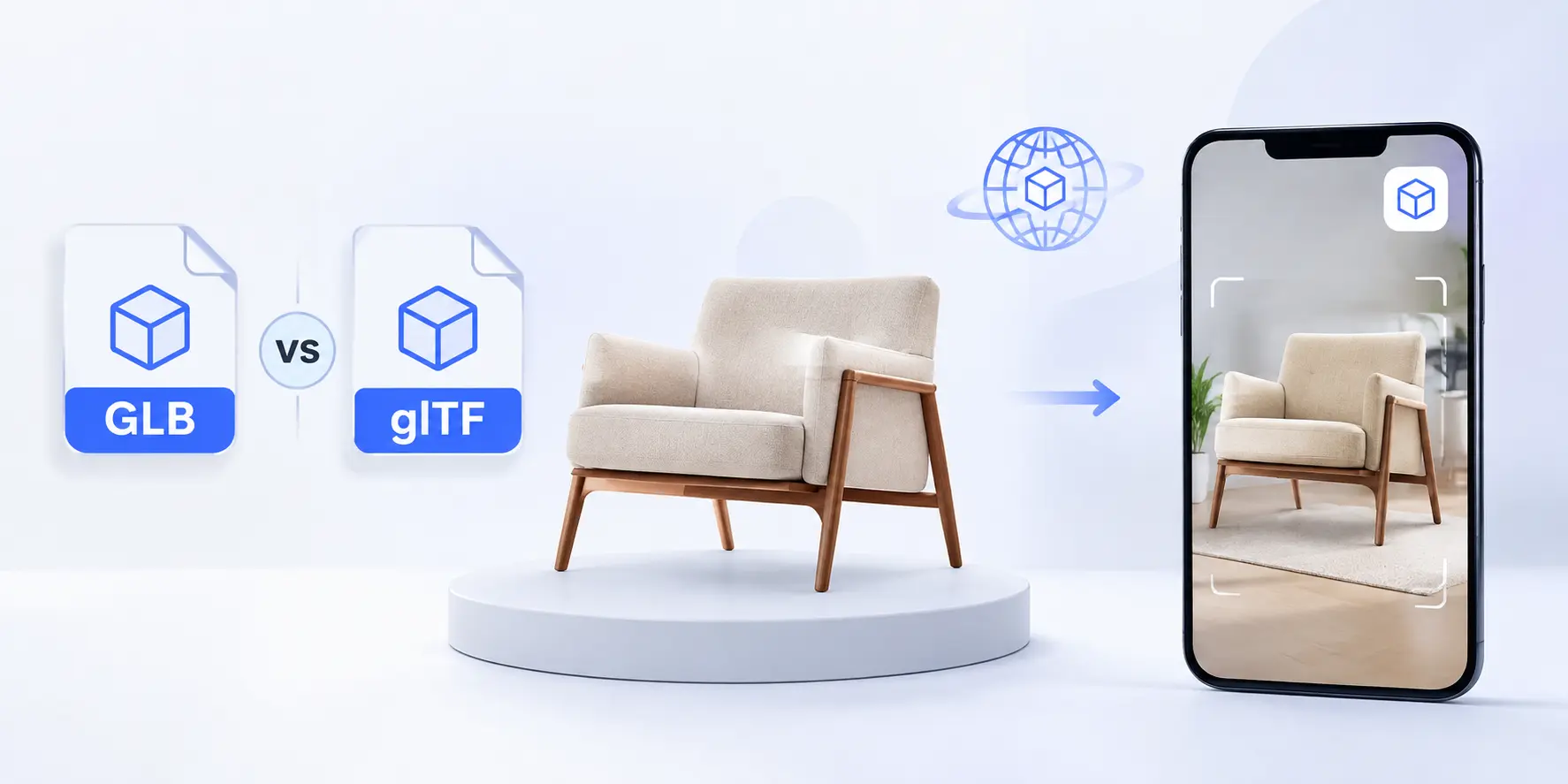
To display a 3D model on a Shopify product page, you need to convert your file into one of two supported formats:
- .GLB – A binary version of the glTF format, works on Android, Windows, and all major browsers
- .USDZ – Apple’s format, required for AR (Augmented Reality) on iPhones and iPads
So the workflow is: Take your STL / OBJ / FBX file → Convert it to .GLB and/or .USDZ → Upload to Shopify
For conversion, tools like Blender (free), Sketchfab, or online converters like Convertio or Microsoft’s 3D Viewer can export your model into .GLB format. If you’re working with a 3D modeling studio or freelancer, simply ask them to deliver the final file in .GLB – any professional should be able to do this without extra cost.
Step-by-Step: How to Add a 3D Model to Your Shopify Store (No Code)
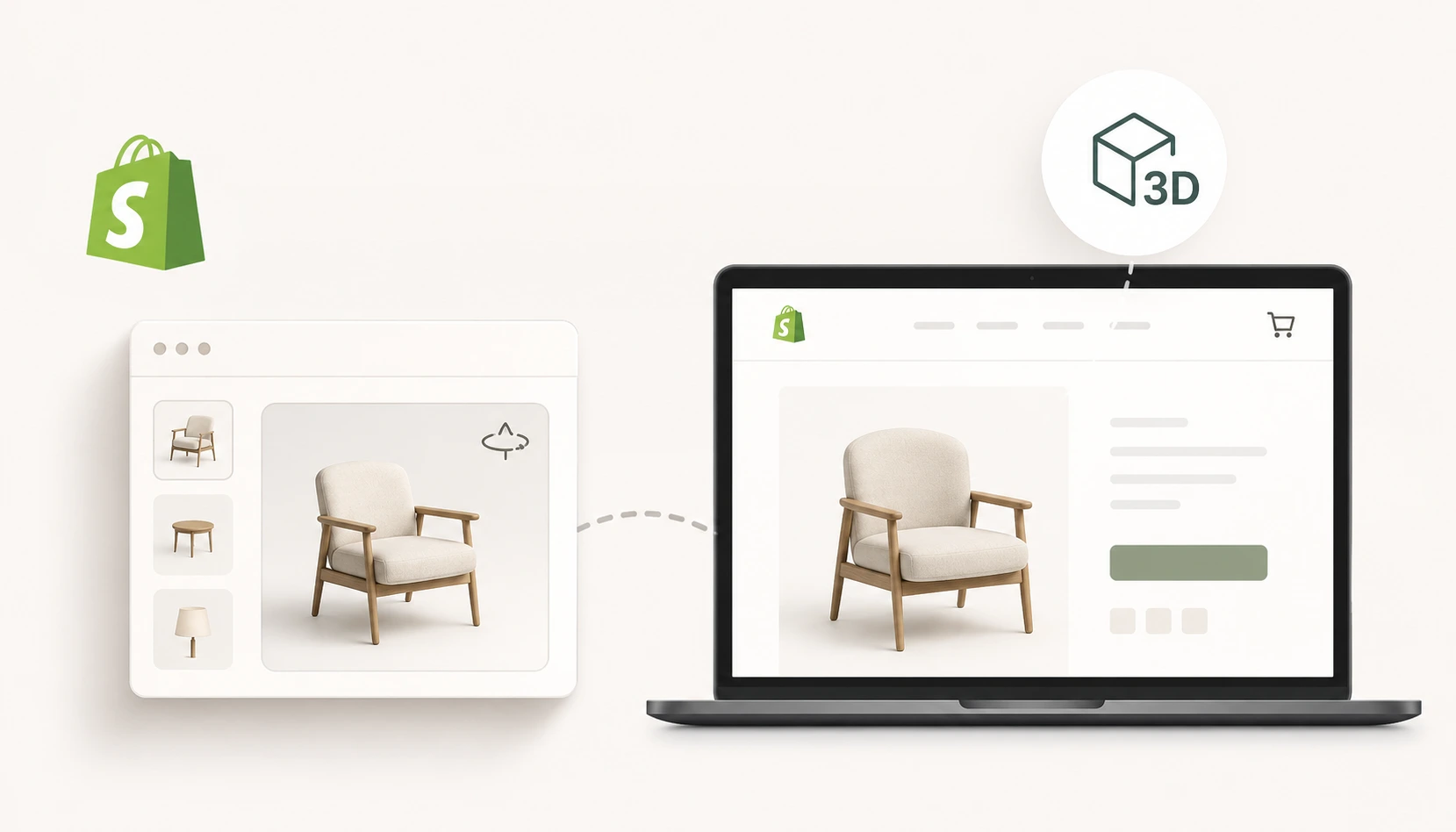
Step 1 – Open Your Shopify Theme Editor
Log into your Shopify admin dashboard. From the left sidebar, go to:
Online Store → Themes → Customize
This opens the theme editor – a visual drag-and-drop builder where you can control how your storefront looks without touching a single line of code.
Step 2 – Navigate to Your Product Page Template
Inside the theme editor, use the top dropdown to switch from the homepage view to your Product page template. This is where 3D models are most commonly added – right alongside your product images.
Look at the left-side panel. You’ll see a list of “sections” and “blocks” that make up the product page layout – things like Product Images, Title, Price, Description, and Buy Button.
Step 3 – Add a 3D Model Block
Scroll through the left panel until you find the Media section or your product image gallery block (the exact label depends on your theme). Click on it.
Then click “Add block” at the bottom of that section’s options.
A dropdown menu will appear. Select “3D model” from the list.
Note: If you don’t see the “3D model” option, your current Shopify theme may not support it natively. Shopify’s free themes (Dawn, Craft, Sense, etc.) all support 3D models. Some older or premium third-party themes may not – in that case, contact your theme developer.
Step 4 – Upload Your 3D Model File to Shopify
Now you need to get your .GLB or .USDZ file into Shopify’s file storage. Open a new browser tab (keep the theme editor open in the other tab) and go to:
Shopify Admin → Content → Files
Click the “Upload files” button in the top-right corner. Select your .GLB file from your computer and wait for the upload to complete.
Once uploaded, your file will appear in the Files list. Hover over it and click “Copy link” – this copies the direct URL of your 3D model file to your clipboard.
Step 5 – Paste the URL Back in the Theme Editor
Switch back to your theme editor tab. You should still see the 3D model block you added in Step 3.
In the block settings on the left, you’ll see a field labeled “3D model URL” or “Model source”. Paste the URL you copied from Step 4 into this field.
The 3D model viewer should now appear in the preview panel on the right side of your screen. If everything is connected correctly, you’ll see your furniture model load inside an interactive viewer.
Step 6 – Add Alternative Text (Don’t Skip This)
Just below the URL field, you’ll find an “Alt text” input. This is a short description of what the 3D model shows – for example: “Walnut dining table with hairpin legs, 3D interactive view.”
Alt text matters for two reasons:
- Accessibility – Screen readers used by visually impaired shoppers will read this description aloud.
- SEO – Search engines can’t “see” a 3D model, but they can index your alt text. A well-written description helps your product page rank for relevant search terms.
It takes 10 seconds and it’s worth it.
Step 7 – Save and Preview
Click the “Save” button in the top-right corner of the theme editor.
Then click “Preview” to open a live preview of your store. Navigate to the product page where you added the 3D model. Hover over the model or click and drag to rotate it – if you can spin the furniture around and explore it from different angles, everything is working correctly.
Test on mobile too. On an iPhone, some .USDZ files will show an “AR” button that lets customers place the furniture in their own room using augmented reality – a feature that consistently increases purchase confidence for furniture buyers.
Common Issues and How to Fix Them
- The 3D model isn’t showing up after pasting the URL Double-check that the file is in .GLB or .USDZ format. If you uploaded an OBJ or STL file, it won’t render – convert it first.
- The model loads but looks wrong (wrong colors, missing textures) This usually means the textures weren’t properly baked into the .GLB file during export. Ask your 3D modeler to re-export with embedded textures.
- I don’t see the “3D model” block option Your theme may not support it. Try switching to Shopify’s free Dawn theme to confirm the feature works, then contact your paid theme’s support team about 3D model compatibility.
- The model is loading very slowly. Large .GLB files (over 15–20MB) will cause slow load times on product pages. Use a tool like gltf-transform or Draco compression to reduce file size without losing visual quality.
Read more : How 3D Furniture Models Reduce Returns & Boost Sales in 2026
Common Mistakes We Always Make (From Real Project Experience)

After working on 1,100+ projects and helping 35+ global furniture brands set up 3D models on their Shopify stores, the same mistakes show up again and again. Here’s what to watch out for before you waste hours troubleshooting.
Mistake #1 -Uploading the Wrong File Format
This is the single most common mistake. A client sends over their product file and it’s an OBJ, STL, or FBX -format that their 3D designer delivered perfectly but that Shopify simply refuses to render. Nothing breaks, nothing crashes -the model just silently doesn’t show up, which is even more confusing.
Fix: Before you even open the Shopify theme editor, confirm your file ends in .glb or .usdz. If it doesn’t, convert it first. No exceptions.
Mistake #2 -Textures and Materials Look Missing or Flat
You upload the .GLB file, and the model loads, but it looks like a grey ghost of your furniture -no wood grain, no fabric texture, no color. This happens when the 3D model’s textures weren’t baked or embedded into the .GLB file during export. The geometry is there, but the visual skin got left behind.
Fix: When exporting from Blender or any 3D software, always select “Include Textures” or “Embed Textures” in the export settings. Ask your 3D modeler to verify this before delivery.
Mistake #3 -File Size Is Too Large and Nobody Notices Until Launch
A 60MB or 80MB .GLB file will technically upload to Shopify. It will technically appear in the theme editor. But when a real customer on a mobile connection tries to load that product page, they’ll wait 8–12 seconds for the model to appear and most of them won’t. This is one of those mistakes that only gets caught after going live, which makes it costly.
Fix: Always check your file size before uploading. Target under 15MB for good performance. Use Draco compression (available in Blender’s glTF export settings) or a tool like gltf.report to compress and audit your file before it goes anywhere near your store.
Mistake #4 -Testing Only on Desktop, Never on Mobile
The 3D viewer works beautifully on a laptop. You click Save, everything looks great, and you move on. Then a customer opens the page on their iPhone and the model either doesn’t render or the AR button doesn’t appear because no .USDZ file was uploaded. Since most furniture buyers are browsing on mobile, this is a serious gap.
Fix: Always test on at least one Android device and one iPhone after adding a 3D model. Check that the model rotates properly, loads in reasonable time, and if you uploaded a .USDZ -that the AR option appears on Apple devices.
Mistake #5 -Skipping the Alt Text Field
Most store owners see the alt text field as optional and ignore it. That’s leaving free SEO value on the table. Search engines cannot crawl or index a 3D model file -they can only read the alt text you provide. Without it, all that interactive content is invisible to Google.
Fix: Write a descriptive alt text that includes your product name, material, and key feature -for example: “Solid oak mid-century coffee table with tapered legs, interactive 3D model.” Takes 15 seconds and helps your page rank.
Mistake #6 -Not Checking Theme Compatibility First
This one costs people the most time. Someone spends 45 minutes trying to add a 3D model block, can’t find the option, assumes they’re doing something wrong, and eventually realizes their premium theme simply doesn’t support 3D models natively. The frustration was entirely avoidable.
Fix: Before starting, check your theme’s documentation or test by temporarily switching to Shopify’s free Dawn theme. If the 3D model block appears in Dawn but not your theme, contact your theme developer -it’s a feature request they can often add.
Mistake #7 -Using a Low-Quality 3D Model to Save Budget
Some brands try to cut costs by using automatically generated or low-polygon 3D models. The result is a model that looks worse than a product photo -rough edges, incorrect proportions, missing details. Customers notice, and it actually damages trust instead of building it.
Fix: 3D models are a brand asset, not just a file. Invest in accurate, high-quality modeling that represents your furniture truthfully. A well-made .GLB file will serve you across your website, social media, AR experiences, and future marketing -it’s not a one-time use asset.
Best Practices for Managing 3D Models After Adding Them to Shopify( How to maintenance it )
Uploading your 3D furniture model to Shopify is only the beginning. Proper file management inside your Shopify CMS is what keeps your store organized, fast-loading, and scalable as your product catalog grows.
Without a clear system, stores quickly end up with oversized files, outdated models, broken product media, and messy file libraries. Below are the most important best practices furniture brands should follow after implementing 3D models on Shopify.
1. Use Shopify’s Content → Files Section as Your Main Asset Hub
Every 3D model uploaded to Shopify is stored inside:
Shopify Admin → Content → Files
This section acts as the central library for all your store assets, including:
3D models
Product images
Videos
PDFs
CSV files
Instead of managing models only from product pages, regularly review your files directly from the Files section. This helps you:
Filter files by type
Find unused 3D models
Monitor file sizes
Sort by upload date
Keep your media library organized
One of the most useful features is the “Used in” filter, which shows whether a file is actively connected to a product or sitting unused in storage.
Best Practice
Delete unused 3D files regularly to reduce clutter and simplify asset management.
2. Name 3D Files Properly Before Uploading
File naming is one of the biggest mistakes Shopify store owners make when managing 3D assets.
When you upload a .glb file, Shopify creates a public CDN URL using that filename. Poor naming can create messy URLs that are difficult to manage later.
Avoid File Names Like:
model_final_v3.glb
new-version-use-this.glb
test-file-2.glb
Use a Clear Naming Structure Instead:
[product-name]-[variant]-[version].glb
Examples
dining-table-oslo-walnut-v2.glb
sofa-venice-grey-fabric-v1.glb
This structure makes it easier to:
Identify product variants
Track updates
Manage versions
Keep your media system organized
Pro Tip
Use lowercase letters and avoid spaces or special characters.
3. Check Shopify Upload Limits Before Scaling
Many furniture brands begin adding 3D models across their full catalog without realizing Shopify has upload limitations based on subscription plans.
The number of videos and 3D models you can upload depends on your Shopify plan. Larger catalogs may require higher-tier plans or expanded storage allowances.
Before Scaling:
Review your Shopify plan limits
Estimate total 3D assets needed
Prioritize high-selling products first
Plan storage requirements early
Best Practice
Start by adding 3D models to:
Best-selling products
High-return items
Premium furniture collections
This gives the highest ROI before scaling store-wide.
4. Keep 3D Model File Sizes Small
Large .glb files can slow down product pages and negatively impact:
SEO rankings
Mobile performance
Conversion rates
User experience
Even though Shopify delivers assets through a CDN, oversized 3D files still hurt loading speed.
Recommended File Size
Ideal: Under 3MB
Maximum target: Under 5MB
Ways to Optimize 3D Models
Reduce polygon count
Compress textures
Use Draco compression
Remove unnecessary geometry
Optimize lighting and materials
Important
Always optimize 3D files before uploading them to Shopify.
Fast-loading models improve both customer experience and conversion performance.
5. Always Add a Fallback Product Image
Not every browser or device supports 3D rendering properly. Some users may experience:
- Slow loading
- Blank media areas
Unsupported 3D viewers
Rendering failures
That’s why every product should include a high-quality static product image alongside the 3D model.
Best Practice
Upload:
A featured product image
The 3D model file
Additional gallery images if needed
Your static image should remain the main media item because Shopify also uses it for:
Collection pages
Cart previews
Search previews
Social sharing
The 3D model should enhance the shopping experience – not replace core product visuals.
6. Removing a Model from a Product Does NOT Delete It
This is one of Shopify’s most overlooked file management issues.
Deleting a 3D model from a product page does not remove the file from your Shopify storage.
The file still exists inside:
Content → Files
Over time, unused files pile up and create confusion.
Best Practice
Whenever replacing or updating a model:
Remove it from the product
Open Content → Files
Delete the unused version manually
This prevents:
Storage waste
Duplicate versions
File management confusion
7. Follow Shopify’s Official 3D Model Standards
If you work with a 3D furniture modeling studio or freelance artist, make sure they follow Shopify’s recommended 3D model standards.
A Shopify-ready 3D model should include:
Visual Accuracy
Real-world scale
Correct dimensions
Accurate product appearance
Optimized Geometry
Clean mesh structure
No overlapping polygons
Efficient polygon count
PBR Materials
Use physically based rendering (PBR) textures for realistic lighting and materials.
Proper UV Mapping
Clean texture layout
No overlapping UV shells
Consistent texture scaling
Best Practice
Share Shopify’s official 3D model guidelines with every 3D artist before production begins. This reduces revisions and prevents compatibility issues later.
8. Track Your 3D Assets with a Master Spreadsheet
Shopify does not provide advanced version tracking for 3D files. As your catalog grows, managing updates becomes difficult without a tracking system.
A simple spreadsheet can help you monitor:
Product SKUs
File names
Version history
Upload dates
Live status
Suggested Spreadsheet Columns
SKU | Product Name | File Name | Version | Live Status |
FN-001 | Oslo Dining Table | oslo-table-v2.glb | v2 | Yes |
Best Practice
Review your 3D asset sheet every few months and compare it with your live Shopify files.
This keeps your store organized and prevents outdated models from staying active unnoticed.
Frequently Asked Questions
Q: Do I need a developer to add 3D models to Shopify?
No. The entire process described above uses Shopify’s built-in theme editor – no coding required. If your theme supports 3D models natively, any store owner can do this in under 10 minutes.
Q: What’s the best file size for a Shopify 3D model?
Shopify officially supports files up to 100MB, but for good page performance, aim for under 15MB. Anything larger will noticeably slow down your product page, which hurts both user experience and SEO.
Q: Can customers use AR (Augmented Reality) to view furniture in their room?
Yes – but only on Apple devices (iPhone and iPad) when you upload a .USDZ file. Android AR support depends on the browser and device. Uploading both a .GLB and a .USDZ file covers both ecosystems.
Q: Will 3D models work on all Shopify themes?
Not guaranteed. All of Shopify’s official free themes (Dawn, Craft, Sense, Refresh, Crave) support 3D models. Third-party themes vary – check the theme documentation or contact the developer.
Q: Does adding a 3D model affect my Shopify page speed score?
It can, if your file is large. A compressed, well-optimized .GLB file under 10MB has minimal impact. Shopify loads the 3D viewer only when a user interacts with it, which reduces initial page load impact.
Q: Can I add 3D models to multiple products?
Yes. You’ll repeat Steps 4–7 for each product – upload the model file, copy the URL, and paste it into that product’s page template. There’s no limit on how many products can have 3D models.
Q: My 3D model file is in OBJ or FBX format. What should I do?
You need to convert it to .GLB first. Use Blender (free and powerful) or an online tool like Convertio.co or Sketchfab’s converter. If you’re outsourcing 3D modeling, simply request .GLB delivery – it’s an industry-standard export format.
Final Thoughts
Adding 3D furniture models to your Shopify store is one of the highest-leverage things you can do for conversion rate – and as you’ve just seen, it doesn’t require a developer or technical background. The process takes less than 15 minutes once your .GLB file is ready.
The real investment is in producing high-quality 3D models that accurately represent your furniture – accurate dimensions, realistic materials, and proper textures. That’s where working with experienced 3D modeling professionals makes the difference between a model that impresses customers and one that drives them away.
Book your free consultation today and let our 3D modeling experts help you create high-quality, photorealistic furniture models that improve customer experience and increase conversions on your Shopify store.